A more comfortable
image viewer
Open images quickly and move smoothly through every image in a folder.
Download on the Mac App StoreChoose supported formats in Rove’s Settings > Default Apps, confirm the macOS prompt, then double-click an image in Finder to jump straight in.
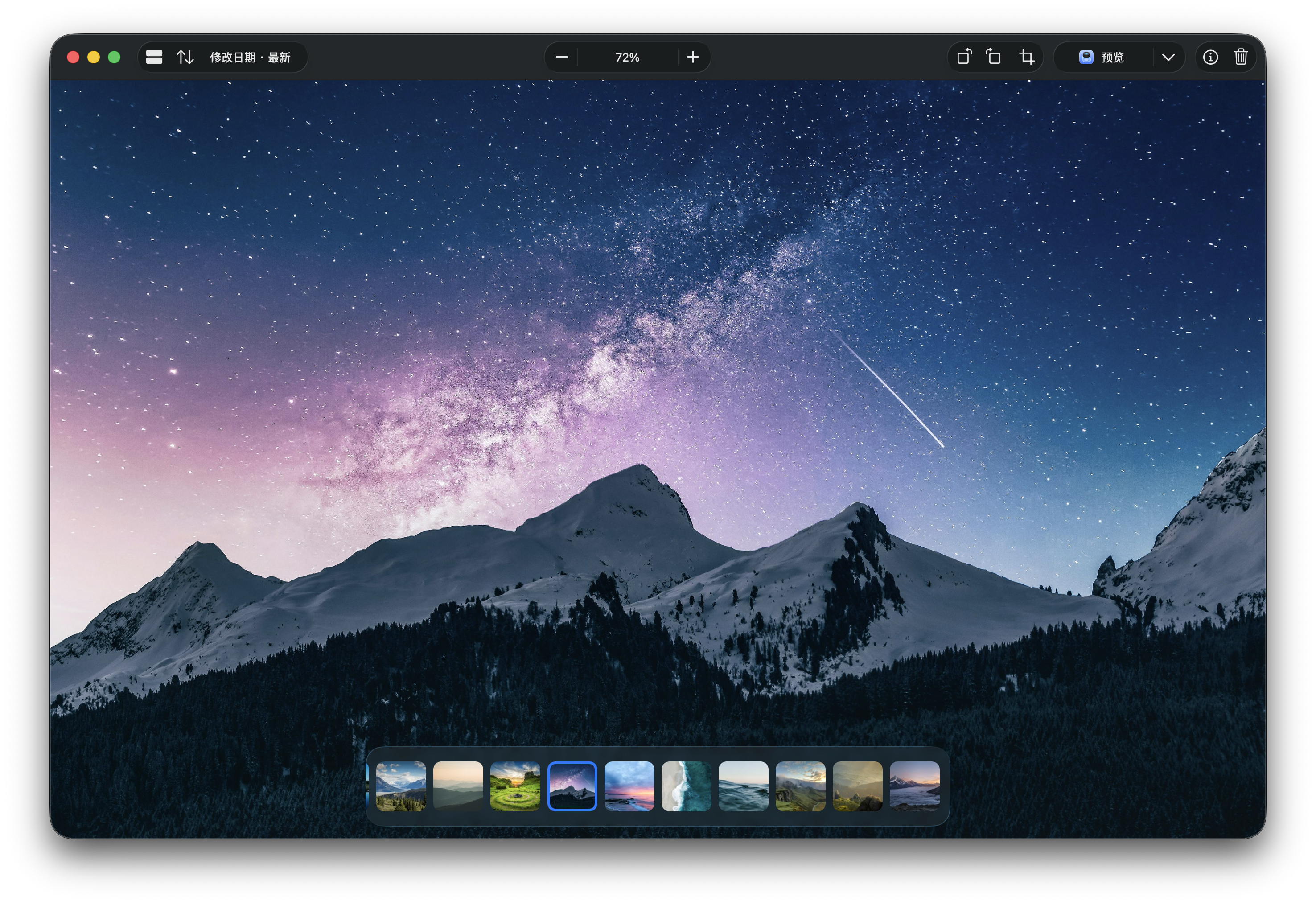
Open one image.
Browse the whole folder.
Open any image and continue through the rest of its folder. No need to reopen every file or import anything into a photo library.
Move quickly,
with almost no waiting.
Use the arrow keys, Space bar, or the thumbnail strip to move and find what you need. Rove keeps up even when you flip through dozens of images.
←→SwitchspaceNext
Viewing an image
should not be this complicated.
After opening an image from Finder, you often just want to see the next one. No importing, and no jumping back and forth between tools.
Rove focuses on this one job: open, switch, and keep browsing.
Simple things
should stay simple.
Rove keeps the actions you actually use while viewing images. They are close at hand when needed, without taking over the interface or interrupting your flow.
Rotate
Quickly correct an image’s orientation.
Crop
Keep the part of the image you want.
Image info
See dimensions, format, and capture details.
Other apps
Continue working in another tool.
You can also copy an image file or its path to use elsewhere.
Frequently asked questions
Short answers about continuous browsing, folder access, and image privacy.
Why can I only see the current image?
Continuous browsing requires access to the image’s folder. The first time you open an image from a location that is not authorized, you can allow Rove to access that folder. If you choose to view only the current image, Rove will not load neighboring files.
Why does Rove need access to the image folder?
The macOS sandbox prevents apps from reading neighboring files automatically. Once you grant access, Rove only looks for viewable images in the folder you selected so it can create thumbnails and move to the previous or next image. You can review or revoke access at any time in Rove settings.
How do I browse a folder continuously?
Open any image from Finder with Rove and allow access to its folder. You can then move through the folder with the left and right arrow keys, Space bar, mouse wheel, or the thumbnail strip.
How do I make Rove my default image viewer?
Open Rove’s Settings > Default Apps. You can choose Rove for one supported image format or request it for every supported format at once. macOS shows a system confirmation for each change.
Does Rove upload my images?
No. Image viewing, thumbnail generation, and basic editing all happen on your Mac. Rove does not scan unauthorized locations in the background, upload images, or collect image content.
Which image formats does Rove support?
Rove supports JPEG, PNG, HEIC/HEIF, GIF, TIFF, WebP, BMP, AVIF, JPEG XL, SVG, PSD, and common RAW formats. Availability also depends on the decoding support in your version of macOS. SVG, PSD, RAW, animated, and multi-frame images are view-only and will not be cropped or overwritten.
How can I report a bug or suggest an idea?
Use the Contact link at the bottom of the page. To help us investigate, include your macOS and Rove versions, the steps leading up to the issue, and—when you are comfortable sharing them—a screenshot or sample file.

Open quickly.
Browse naturally.
A lightweight, fast Mac app focused on everyday image browsing.
Download on the Mac App Store